
Why move off apex.oracle.com
apex.oracle.com is the fastest way to learn APEX, and the wrong place to run a real app. Oracle's own service page lists the limits plainly:
- no running of production applications, and no production or sensitive data
- workspaces with no activity are purged after 60 days
- Oracle does not back up workspaces or offer any recovery
- no changes to instance settings, and scheduler jobs no more often than every 10 minutes
The service also moved to the oracleapex.com domain in August 2025, so anything that still points at the old address, such as social sign-in redirects or integrations, needs updating anyway.
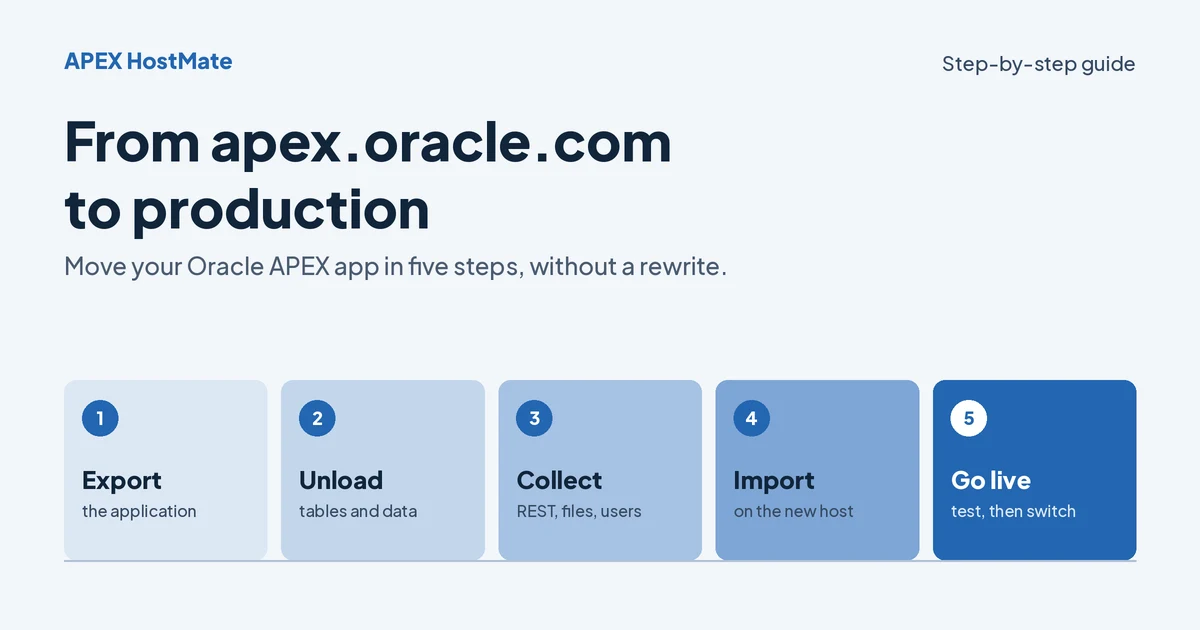
The short version: an APEX app is not rewritten when it moves. You export the application, export your tables and data, move a few pieces that live outside the app, import everything on the new host and test. For a typical small business app this takes an afternoon. This guide walks through each step and the problems that come up most often.
Before you start
Check the APEX version on both sides. Oracle's documentation is clear: you cannot import an application created in one release into an earlier release. apex.oracle.com usually runs the newest APEX, sometimes ahead of what hosting providers have installed. Find the version on apex.oracle.com (in the APEX builder, Help → About) and confirm that your new host runs the same release or a newer one before you plan the move.
Know what moves with the app and what does not.
| Moves with the application export | Moves separately |
|---|---|
| Pages, regions, processes, shared components | Your tables, views, packages and data |
| Application static files | Workspace static files |
| Supporting objects, if you defined them | RESTful Services (ORDS modules) |
| Web credential definitions | The secrets inside web credentials |
| Authentication and authorization schemes | APEX workspace users and their passwords |
Make a list of the database objects your app uses. apex.oracle.com does not allow direct database connections, so there is no Data Pump and no SQL Developer access. Everything is exported from inside APEX, which is easy for a few dozen tables and slower for hundreds.
Step 1: Export the application
- On apex.oracle.com, open App Builder and select your application.
- Choose Export / Import, then Export.
- Keep the default options and download the file. It is a single SQL script containing the whole application, including its static files and supporting objects.
If you have several applications that work together, export each one, and note their application IDs: links between apps often use the ID in the URL.
Tip: keep a copy of the export in version control or at least in a dated folder. It is your safety net if anything goes wrong during the move, and a good habit afterwards.
Step 2: Export your tables and data
The application export does not include your schema's objects or data, so you export them separately, from inside APEX.
Database objects (the structure):
- Open SQL Workshop → Utilities → Generate DDL and click Create Script.
- Select your schema, then the object types you use: tables, views, sequences, packages, procedures, functions, triggers.
- Choose the objects, finish the wizard and save the script.
Data:
- Open SQL Workshop → Utilities → Data Workshop and click Unload Data.
- Choose Text Format, select the table and its columns, keep the comma separator and tick Include Column Names. You get a CSV file.
- Repeat for each table that holds data you need, one table at a time. Skip tables you can rebuild, such as logs.
The wizard cannot unload BLOB or BFILE columns. If you store files or images in the database, they need another route, such as a small export page in your app, or ask your new host for help.
Watch out for:
- Dates and numbers. Note the date format of the CSV, so you can map it correctly when you load it.
- Sequences. After loading data, check every sequence and identity column: its next value must be higher than the highest key already in the table, or new inserts will collide with old rows.
- Large tables. Exporting dozens of large tables one by one is slow. This is the point where many people hand the job to their new host.
Step 3: Collect what lives outside the app
These are the items people most often forget, and they only show up as errors after go-live.
- RESTful Services. If your app publishes or calls ORDS modules defined in the workspace, export them from SQL Workshop → RESTful Services and import them on the new host.
- Workspace static files. Files uploaded at workspace level, rather than to the application, are not in the app export. Download them and upload them again.
- Web credential secrets. The credential definitions move with the app, but passwords, client secrets and API keys do not. Have them ready to enter again.
- Users. If the app uses APEX accounts for sign-in, those workspace users do not come with the application. Plan to recreate them, or switch to the authentication method you will use in production.
- Email. On a new host, outbound email through
APEX_MAILuses that host's mail settings. Test it rather than assuming it works. - Hard-coded addresses. Search your app for
apex.oracle.com,oracleapex.comand fixed URLs, and replace them with relative links or your new domain.
Step 4: Import on the new host
Work in this order, so that each step finds what it needs.
- Create the database objects. In your new workspace, open SQL Workshop → SQL Scripts, upload the DDL script from step 2 and run it. Objects that depend on each other sometimes fail on the first run; run the script again, then recompile anything still invalid.
- Load the data. Open SQL Workshop → Utilities → Data Workshop → Load Data and load each file into its table. With many files, a desktop tool such as SQL Developer is faster, if your host allows database connections.
- Fix sequences and identity columns, as described in step 2.
- Import the application. Open App Builder → Import, choose the export file and select your new schema as the Parsing Schema. The schema name does not have to match the old one. If the wizard finds credentials or supporting objects, follow its prompts.
- Import the rest: RESTful Services, workspace static files, and the secrets for each web credential.
Oracle's documentation recommends importing the application first and its related files afterwards, which matches this order.
Step 5: Test, then go live
Test on the new host while the old copy still works. Before you send users over, check:
- Every page in the navigation opens without an error
- Sign-in works with the authentication you will use in production
- Forms save: create, change and delete a test record in each main table
- Reports and charts show the expected row counts
- Scheduled jobs, email and REST calls run
- Debug mode is off and error pages do not show SQL
- Your own domain points to the app, with HTTPS
When everything passes, freeze changes on apex.oracle.com, copy any rows added since your export, and switch users to the new address.
Keep the apex.oracle.com workspace for a week or two as a fallback, then remove it. Remember that Oracle purges inactive workspaces after 60 days anyway.
Common problems and how to fix them
| Problem | Usual cause | Fix |
|---|---|---|
| The import refuses the file | The export comes from a newer APEX release than the new host runs | Move to a host on the same or a newer release; an export cannot be imported into an earlier release |
| Pages fail with "table or view does not exist" | An object was missed in the DDL, or the app refers to it with the old schema name | Create the missing object; replace hard-coded OLDSCHEMA. prefixes |
| Packages are invalid after the script | Objects were created in the wrong order | Run the script again, then recompile invalid objects |
| "Unique constraint violated" on the first new record | A sequence or identity column starts below existing keys | Move the sequence above the highest key |
| Users cannot sign in | APEX workspace users were not recreated | Recreate the accounts, or switch to your production authentication |
| REST calls return 404 | The ORDS modules were not imported, or the URL still points to apex.oracle.com | Import the modules; update the base URL |
| Email does not arrive | The new host's mail setup, or the sender address | Test APEX_MAIL and check with your host which sender addresses are allowed |
Frequently asked questions
Can I run a production app on apex.oracle.com?
No. Oracle's service page says it is for demonstration only and lists "no running of production applications" among its limits. There are also no backups, and inactive workspaces are purged after 60 days.
Do I have to rewrite my application?
No. The application moves as one export file and is imported unchanged. The work is in moving the data and the few items that live outside the app.
Can I use Data Pump to move my schema?
Not from apex.oracle.com, because it does not allow direct database connections. Use Generate DDL and Unload Data as described above. Between your own servers, Data Pump is usually the better tool.
How long does the move take?
For a small app with a handful of tables, a few hours including testing. Apps with many tables or integrations take longer, mostly because of data export and testing.
Will my application ID and URLs change?
The application ID can stay the same or change, depending on what is free on the new instance. The address will change to your new host or your own domain, so update bookmarks and links.
The bottom line
Moving off apex.oracle.com is an export, a data copy and a careful test, not a rebuild. Check the APEX version first, collect the pieces that live outside the app, import in the right order, and keep the old copy until the new one has proved itself.
If you would rather not do it yourself, APEX HostMate includes free migration with every plan: we move the application, the schema and the data, and you can test everything before you switch your users. Plans start with Oracle APEX shared hosting; our knowledgebase has the same steps for our platform. Not sure which plan fits? See Oracle APEX shared vs dedicated hosting.
Sources
Checked in October 2026. Menu names can change between APEX releases.
- Oracle: Free APEX Evaluation Service — demonstration only, no production applications, 60-day purge of inactive workspaces, no backups, move to oracleapex.com
- Oracle APEX documentation: Importing Export Files — no import into an earlier release; import the application first, then related files; parsing schema; credentials and supporting objects
- Oracle APEX documentation: Understanding the Deployment Process — the target schema needs the app's objects; the schema name can change during import
- Oracle APEX SQL Workshop Guide: Unloading Data — Unload Data wizard, text and XML formats, no BLOB or BFILE columns
- Oracle APEX SQL Workshop Guide: Generating DDL — Generate DDL and Create Script